
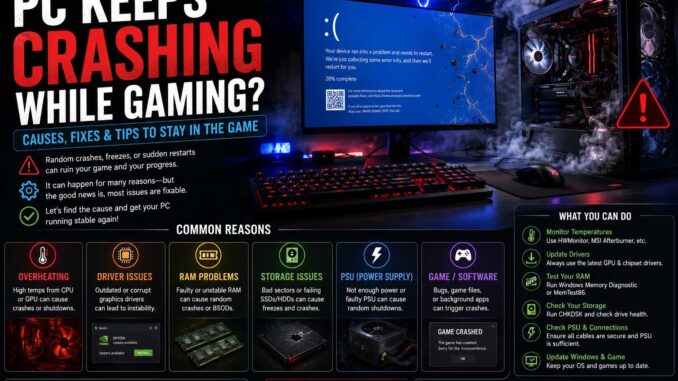
If your pc keeps crashing while gaming, you’re not alone. Game crashes can happen for many reasons, ranging from outdated drivers to overheating hardware or unstable system settings. The good news is that most problems can be diagnosed and fixed without replacing your entire computer.
Whether the game freezes, closes to the desktop, shows a blue screen, or your computer suddenly restarts, this guide walks through the most common causes and practical solutions. Start with the easiest fixes first, then move on to more advanced troubleshooting if the problem continues.
PC Keeps Crashing While Gaming: Start With These Quick Checks
Before changing system settings or replacing hardware, run through this checklist.
- Restart your PC.
- Install the latest graphics driver.
- Update Windows.
- Verify your game’s files through Steam, Epic Games, or your launcher.
- Close unnecessary background programs.
- Check that your PC isn’t overheating.
- Make sure your storage drive has enough free space.
- Remove any GPU or CPU overclock.
Many gaming crashes are solved by one of these simple steps.
Common Reasons Your PC Crashes During Games
Gaming pushes your computer much harder than web browsing or office work.
If one component isn’t functioning properly, it can trigger errors that make system crashes and performance issues much more likely.
Graphics Driver Problems
Graphics drivers are one of the biggest causes of crashes.
Signs include:
- Black screens
- Game freezing
- Driver timeout messages
- Crashes shortly after launching games
Download the newest driver directly from NVIDIA, AMD, or Intel instead of relying on Windows Update.
If crashes began immediately after installing a new driver, rolling back to the previous version can sometimes solve the issue.
Overheating
Modern CPUs and GPUs automatically protect themselves from excessive heat.
When temperatures climb too high, your PC may:
- Freeze
- Shut down
- Restart
- Exit games unexpectedly
Use monitoring software to check temperatures while gaming.
Typical safe ranges are:
| Component | Normal Gaming Temperature |
|---|---|
| CPU | 60–85°C |
| GPU | 60–80°C |
If temperatures regularly exceed these ranges, clean dust from your case, improve airflow, or replace old thermal paste if appropriate.
Faulty RAM
Unstable memory often causes random crashes that are difficult to diagnose.
Symptoms include:
- Different games crashing randomly
- Blue screen errors
- Installation failures
- Corrupted files
Running Windows Memory Diagnostic or MemTest86 can identify faulty RAM.
Power Supply Problems
Gaming places heavy demands on your power supply.
If your PSU cannot provide stable power, the computer may suddenly power off or restart during demanding scenes.
This issue becomes more common after installing a more powerful graphics card.
If you’re upgrading components, choosing the best motherboard for gaming alongside a reliable power supply helps ensure stable performance under heavy gaming loads.
Corrupted Game Files
Sometimes the problem isn’t your PC at all.
Game updates, interrupted downloads, or storage errors can damage important files.
Most launchers include a repair option.
Examples include:
- Verify Integrity of Game Files (Steam)
- Scan and Repair (Battle.net)
- Verify Files (Epic Games)
Running these tools often fixes crashes without reinstalling the entire game.
Software Conflicts That Cause Gaming Crashes
Not every crash comes from hardware.
Background applications frequently interfere with games.
Common examples include:
- RGB control software
- Overlay applications
- Recording software
- Antivirus scans
- Hardware monitoring utilities
- Third-party performance boosters
Try launching the game after temporarily closing unnecessary programs.
If stability improves, reopen programs one at a time to identify the conflict.
Check Your Graphics Settings
Running demanding games above your hardware’s capabilities can cause instability.
Reduce settings such as:
- Ray tracing
- Texture quality
- Shadow quality
- Anti-aliasing
- Render resolution
Lowering just one or two demanding options often improves stability without noticeably reducing image quality.
Keep Windows and Drivers Updated
Many crash fixes arrive through software updates.
Check for updates regularly:
- Windows Update
- GPU drivers
- Motherboard chipset drivers
- DirectX
- Game launcher updates
Current drivers also improve compatibility with newly released games.
PC Keeps Crashing While Gaming on Windows 11
Many players searching for pc keeps crashing while gaming windows 11 experience problems after major Windows updates or fresh installations.
Fortunately, Windows 11 itself is rarely the direct cause.
Instead, crashes often result from:
- Outdated drivers after upgrading
- Unsupported BIOS versions
- Security software conflicts
- Corrupted DirectX files
- Background applications
Start by fully updating Windows, then install the latest chipset and graphics drivers from your hardware manufacturer’s website.
If crashes only started after a recent Windows update, checking for optional driver updates or uninstalling the problematic update may help.
Remove Overclocks While Troubleshooting
Many gaming enthusiasts overclock their hardware.
Although overclocking can improve performance, unstable settings frequently cause crashes.
Temporarily return everything to factory defaults.
This includes:
- CPU overclock
- GPU overclock
- XMP or EXPO memory profile (for testing)
- Undervolting profiles
If crashes disappear, gradually restore your settings until you identify the unstable configuration.
Event Viewer Can Reveal Hidden Problems
Windows records many system errors automatically.
Open Event Viewer and look under:
Windows Logs → System
Look for errors occurring at the exact time your crash happened.
Examples include:
- Display driver failures
- Kernel-Power events
- Disk errors
- Driver crashes
Although Event Viewer doesn’t always provide the complete answer, it often points you toward the affected component.
Test More Than One Game
A useful troubleshooting step is comparing several games.
Ask yourself:
- Does every game crash?
- Does only one game crash?
- Do crashes happen after the same amount of time?
- Does lowering graphics settings help?
If only one title crashes, the issue may be game-specific rather than hardware-related.
Trying newer releases alongside older titles—even some of the best games of 2026—can help determine whether the problem affects every game or only certain engines or graphics APIs.
Quick Troubleshooting Order
If you’re unsure where to begin, follow this step-by-step sequence to troubleshoot the issue efficiently and identify the root cause.
- Restart your PC.
- Update Windows.
- Update GPU drivers.
- Verify game files.
- Disable overlays.
- Monitor CPU and GPU temperatures.
- Remove overclocks.
- Test RAM.
- Test another game.
- Check Event Viewer for recurring errors.
Working through these steps methodically saves time and prevents unnecessary hardware replacements.
New PC Keeps Crashing While Gaming
A brand-new system isn’t immune to crashes. In fact, many stability issues appear during the first few days because gaming places the highest load on your hardware.
If you’re searching for new pc keeps crashing while gaming, check these areas first:
Install Every Driver
Don’t rely only on the drivers Windows installs automatically.
Visit the official websites for your:
- Graphics card
- Motherboard
- Wi-Fi or Ethernet adapter
- Audio chipset
Installing the latest drivers often resolves compatibility problems.
Update the BIOS
Motherboard manufacturers regularly release BIOS updates that improve:
- Memory compatibility
- CPU stability
- Hardware support
- Gaming performance
If your motherboard is running an older BIOS version, updating it may solve random crashes.
Always follow the manufacturer’s instructions carefully when updating the BIOS.
Check Hardware Connections
If you recently built your PC, inspect every component.
Make sure:
- RAM is fully seated.
- GPU power cables are secure.
- CPU cooler is firmly mounted.
- SSDs are properly connected.
- Power connectors are fully inserted.
Even a slightly loose cable can cause unexpected crashes under heavy load.
PC Keeps Crashing and Restarting While Gaming
If your pc keeps crashing and restarting while gaming, the issue is often more serious than a game simply closing.
Instead of looking at software first, focus on hardware stability.
Common causes include:
- Power supply problems
- CPU overheating
- GPU overheating
- Faulty RAM
- Unstable BIOS settings
- Hardware failure
A sudden restart usually means Windows didn’t have time to display an error message.
Check Your Power Supply
Power supplies naturally lose efficiency as they age.
If your GPU suddenly draws more power during demanding scenes, an aging or underpowered PSU may shut the system down.
Signs include:
- Instant restarts
- No blue screen
- Restarts only while gaming
- Fans briefly stopping before rebooting
If possible, test with another high-quality power supply.
Watch CPU and GPU Temperatures
High temperatures don’t always cause immediate shutdowns.
Instead, components may throttle performance before eventually becoming unstable.
Use software such as:
- MSI Afterburner
- HWInfo
- GPU-Z
- Core Temp
Record temperatures while playing for at least 20–30 minutes.
If crashes always occur after temperatures spike, cooling is likely the problem.
Run Stress Tests to Find the Fault
Stress testing helps identify which component becomes unstable.
Useful tests include:
| Component | Recommended Test |
|---|---|
| CPU | Prime95 or OCCT |
| GPU | FurMark or 3DMark Stress Test |
| RAM | MemTest86 |
| Storage | CrystalDiskInfo for health checks |
Avoid running multiple stress tests at the same time.
Instead, test one component at a time so you can isolate the issue.
Storage Problems Can Cause Crashes
Although storage drives don’t usually cause instant restarts, they can create game crashes if files become corrupted.
Check:
- Available storage space
- SSD health
- Hard drive health
- SMART status
Running the Windows disk checking utility can also repair file system errors.
Disable Unnecessary Overlays
Many applications display overlays while gaming.
Examples include:
- Discord
- Steam
- Xbox Game Bar
- NVIDIA Overlay
- AMD Adrenalin Overlay
- MSI Afterburner overlay
Most work well, but occasionally two overlays conflict with one another.
Disable them one by one to see whether stability improves.
Don’t Ignore Windows Error Messages
Even if a game crashes unexpectedly without displaying an error message, Windows often records useful diagnostic information that can help identify the cause of the problem.
Useful tools include:
- Reliability Monitor
- Event Viewer
- Windows Security
- Device Manager
Reliability Monitor is especially beginner-friendly because it displays crashes on a timeline with brief explanations.
When Should You Replace Hardware?
Not every crash means a component has failed.
Consider replacing hardware only after you’ve ruled out software problems.
Replacement may be necessary if you discover:
- Failing RAM
- A defective graphics card
- An unstable power supply
- A failing SSD
- Persistent overheating caused by damaged cooling hardware
Testing components individually is usually the fastest way to confirm a hardware fault.
Prevention Tips for Long-Term Stability
Once you’ve fixed the issue, a few habits can help prevent future crashes.
- Keep graphics drivers updated.
- Clean dust from your PC every few months.
- Monitor temperatures occasionally.
- Avoid unstable overclocks.
- Install Windows updates regularly.
- Leave at least 15–20% free space on your SSD.
- Download drivers from official manufacturers only.
- Shut down your PC properly instead of forcing power-offs.
These simple steps reduce the chances of crashes returning later.
Frequently Asked Questions
Why does my PC only crash while gaming?
Gaming places much heavier demands on your CPU, GPU, RAM, and power supply than everyday tasks. A problem that isn’t noticeable while browsing the web can appear quickly under gaming loads.
Why does my PC keep crashing while gaming but not overheating?
Temperature isn’t the only cause. Driver issues, unstable memory, software conflicts, power supply problems, or corrupted game files can all trigger crashes even when temperatures remain normal.
Why does my game crash but Windows stays open?
This usually points to a software issue rather than complete system instability. Corrupted game files, outdated graphics drivers, incompatible mods, or game-specific bugs are common causes.
Can faulty RAM cause gaming crashes?
Yes. Bad memory often causes random crashes, blue screens, corrupted files, or games closing unexpectedly. Running a memory test is one of the best ways to confirm whether RAM is the problem.
Is Windows 11 causing my games to crash?
In most cases, no. While some updates can temporarily introduce compatibility issues, crashes are usually related to outdated drivers, BIOS settings, unstable hardware, or software conflicts rather than Windows itself.
Should I reinstall Windows?
A clean Windows installation can solve persistent software problems, but it should be one of the last troubleshooting steps. Test your hardware and update drivers before considering a full reinstall.
Get Back to Gaming Without the Crashes
If your pc keeps crashing while gaming, don’t assume the worst. Most crashes are caused by driver issues, overheating, unstable settings, or software conflicts that can be fixed without replacing expensive hardware.
Start with the simple solutions, such as updating drivers, checking temperatures, and verifying game files. If the problem continues, work through hardware tests one component at a time instead of changing multiple settings at once. A methodical approach not only saves time but also helps you identify the real cause, so you can get back to smooth, stable gaming with confidence.